Use case II: Model automation
You own the monthly three-statement update. First, try to automate it yourself using the workflow from this module. Then verify your output before comparing it with one possible solution.
1. The business task
You’re a first-year FP&A analyst at a mid-market manufacturer. On the second business day of each month, you update the company’s three-statement model—the income statement, balance sheet, and cash flow statement—so the CFO can use it in the monthly business review the next day.
Right now, the process is largely manual: export the trial balance from NetSuite, open last month’s workbook, paste the new balances into the correct rows, fix anything that breaks, and reconcile the model until the balance sheet balances. It takes four to five hours, and you have already made two sign errors this quarter.
You do not need to redesign the model. You need a reliable way to refresh the existing model in about ten minutes, flag anything that still requires human judgment, and produce a short management note explaining the most important changes.
2. Data available
Three things are sitting in a folder on your laptop. Sample versions of all three are linked below so you can follow along:
- trial_balance.csv — April's trial balance exported from NetSuite. It contains roughly 100 GL accounts for a single month. Each month, you export a fresh version of this file and run the same update process again.
- account_mapping.csv — a lookup table that tells the workflow where each GL account belongs in the model and whether its sign needs to be reversed. For example, an account might map to Revenue, COGS, or Accrued expenses. You maintain this file manually as new accounts are added to the chart of accounts.
- model_2026-03.xlsx — the March version of the three-statement financial model. Its Inputs tab contains one column per month. January through March are already populated, while April is blank. The income statement, balance sheet, and cash flow statement all pull from Inputs, so filling in April automatically updates the rest of the model. After the April run, the updated file becomes the starting point for May.
The main complication is that the mapping file is never perfectly current. New GL accounts may appear when the company opens a new entity, launches a product line, or signs a new lease. Those accounts require judgment about where they belong in the model. Sign conventions also differ: for example, revenue may appear as negative in the GL but positive in the model. The workflow can handle those sign changes mechanically, but it should surface new or unmapped accounts for human review rather than guessing.
A sample of the trial balance:
account_number, account_name, period, debit, credit
40000, Product revenue - US, 2026-04, 0, 1898965.08
40010, Product revenue - EU, 2026-04, 0, 657396.84
50000, COGS - materials, 2026-04, 788756.23, 0
60100, Salaries - sales, 2026-04, 93709.12, 0
21000, Accrued expenses, 2026-04, 0, 152744.74
3. Try it yourself
Start by exploring the three source files so you understand how the trial balance, account mapping, and existing Excel model fit together. Complete the workflow manually once to make sure you understand it (you can follow the video here).
Then automate the April update using whatever workflow you are comfortable with. Do the best job you can. Your output should preserve the existing model, update it with the April trial balance, make it clear when human judgment is still needed, and generate a short management summary of what changed this month, why it changed, and any notable trends or issues to watch.
When you're finished, keep your files and notes. In the next step, you'll verify whether the automation actually worked.
4. Verify the output
Do not judge the result only by whether the script ran without an error. Check the updated workbook and the workflow against the source files.
| Check | Questions to ask |
|---|---|
| Source protection | Did the workflow leave the original workbook and source files unchanged and create a new output file? |
| Account mapping | Were mapped accounts assigned to the correct model lines with the correct sign convention? |
| Unmapped accounts | Did the workflow identify accounts that are missing from the mapping instead of silently guessing where they belong? |
| Workbook integrity | Were the existing formulas and prior-month historical values left intact? |
| Known totals | Do selected line items in the updated model match totals you can independently calculate from the trial balance? |
| Balance check | Does the updated balance sheet balance? If not, does the workflow help you identify why? |
| Human judgment | Does the workflow pause before making decisions that should require your approval, such as changing the account mapping? |
| Management insights | Does the output explain the most important changes this month, likely drivers, notable trends, and anything a manager should pay attention to? |
| Repeatability | Could you use the workflow again next month without rebuilding it from scratch? |
If something does not match, investigate the discrepancy before asking the agent to patch the output. The goal is to understand whether the problem comes from the source data, the mapping, the workbook, or the automation itself.
5. One possible solution
Here is one way to approach the task. The important part is not the exact prompts, but the workflow: plan first, inspect the output, keep judgment-heavy decisions with the human, and save what works for next month.
Step 1 · Plan before building
I first asked Claude to inspect the three files and propose a plan before changing anything. I also made the key constraints explicit: do not overwrite source files, preserve formulas, use the account mapping, and flag unmapped accounts instead of guessing.
You are a financial analyst. Every month you need to update
the three-statement model based on this month's trial balance
spreadsheet. You want to write Python code that automates the
paste-and-reconcile step. There are three relevant files in
the folder:
- trial_balance.csv
- account_mapping.csv
- model_2026-03.xlsx

The steps should be:
1) For each row in the TB file, categorize its model_line
   using the account_mapping. If no mapping exists, skip but
   record in a separate file.
2) For each row in the last column of the Input worksheet of
   model.xlsx, sum up the corresponding debit-credit for that
   model_line from the TB file. Fill the cell.
3) All existing files are read-only. Create new files if needed.
4) Save the updated model to a new file with month updated,
   do not overwrite source.
5) Leave all formula cells intact, do not change.

Before writing any code, first show me the complete plan.
Step 2 · Run the first update
After reviewing the plan, I let Claude build and run the automation. The first run filled most model lines, identified five unmapped accounts, and showed that the balance sheet was still off by $1,240. That was useful: the workflow surfaced the remaining problem instead of hiding it.
Step 3 · Review the unmapped accounts
Before changing the mapping file, I asked Claude to recommend where each new account should go and explain why.
Give me a table of the unmapped accounts, and what
model_line I should add them to in the map and why.
Most recommendations were straightforward, but at least one required judgment. That is exactly where a human checkpoint belongs: Claude can recommend, but it should not silently decide how the business reports a new account.
Step 4 · Approve and re-run
After reviewing the recommendations, I approved the mapping changes and asked Claude to run the update again.
Looks good, add them to account_mapping.csv as
suggested. Then re-run the script with the updated mapping.
Step 5 · Generate management insights
Once the model balanced, I asked Claude to summarize the results for a manager: what changed, how much it changed, and possible reasons.
Now generate a summary table that lists:
1. Revenue (value for this month, percentage change from
   last month, possible reasons)
2. Net income (value for this month, percentage change from
   last month, possible reasons)
3. Balance sheet (whether it is balanced)
4. The new accounts that were added to the map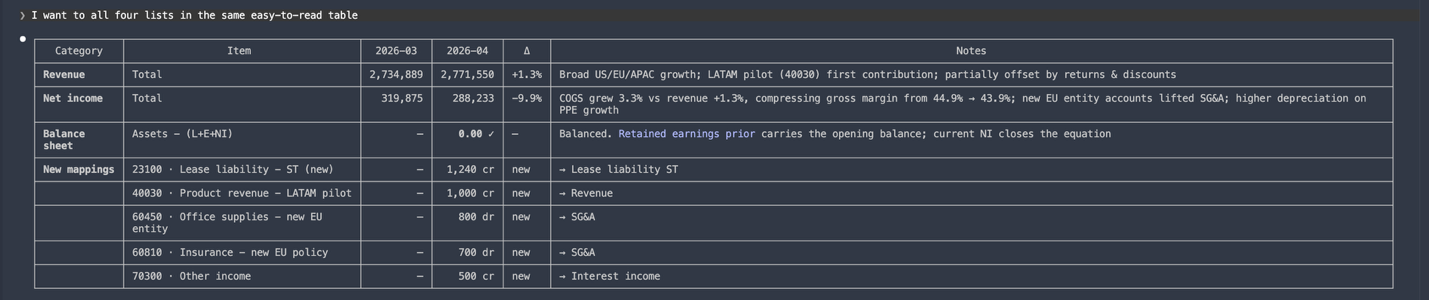
This step matters because a technically correct model is only part of the job. The manager also needs to understand what changed and what deserves attention.
Step 6 · Save the workflow for next month
Finally, I asked Claude to summarize the process into a reusable workflow.
Can you summarize my workflow in this session so I
can do this again next month?
Claude initially made the process too automatic: it proposed updating the mapping file without stopping for approval. I corrected that and made the approval step explicit.
I need to check and approve the unmapped accounts
before adding them to the map. Make this a human
checkpoint.
The final workflow was saved as
workflow.md
so the same process could be reused next month.
6. What good looks like
A good result is more than a script that runs. It should produce an updated model you can trust, surface anything that needs human review, and give the manager a short explanation of the month's most important changes.
| Category | 2026-03 | 2026-04 | Δ | Notes |
|---|---|---|---|---|
| Revenue | 2,734,889 | 2,771,550 | +1.3% | Broad growth across regions; LATAM pilot launched. |
| Net income | 319,075 | 288,233 | −9.9% | Gross margin compressed 44.9% → 43.9%; new EU entity lifted SG&A. |
| Balance sheet | — | Balanced ✓ | — | Five new accounts added to mapping this month. |
The summary should be concise and useful to a manager. Keep the detailed mapping decisions in your working files; highlight only the changes, drivers, and risks that matter for the monthly review.
Watch for
- Silent mapping changes. New-account classifications should be reviewed before they become part of the model.
- Unsupported explanations. If Claude suggests a reason for a change, make sure the available data actually supports it.
7. Reuse the workflow next month
Once the process is working, the goal is not to repeat the whole conversation. Save the workflow and reuse it with the next month's files.
I have updated the trial balance data for May.
Repeat last month's process using @workflow.md.
Claude can then follow the same sequence: update the model, surface unmapped accounts, pause for approval when needed, re-run the checks, and generate the management summary. You still review the final model and the explanation before using them.